FTP

This page is maintained by the CSE System Group

From CsWiki

Jump to: navigation, search

You can only ftp to the following CSE hosts: pita, inferno, mangal and humus. Note: undergraduate students can only access pita and inferno.

In order to ftp to one of the allowed CSE hosts, you must go through the CSE gateway. The following is the procedure to ftp to a CSE host:

  1. Ftp to gw.cs.huji.ac.il.
  2. Login using your CSE username and your OTP password. If you were successful, the gateway will respond 230 User authenticated to proxy.
  3. Enter: user USERNAME@CSEHOST. For example: user rafa@pita. If you were successful, you will get the response: 230 User rafa logged in.
  4. Now proceed with regular ftp commands.

Contents

Graphical FTP

The best way to use FTP is from the command line. It is faster and simpler. Additionaly most graphical FTP clients can't connect to CSE since we use a gateway/proxy. However, if you really really want to use a graphical FTP client, here are some instructions.

Unix

Install gFTP, open it and do the following steps exactly (please read it once before connecting).

  1. Write the host you want to connect to (like pita, inferno or any other), your username, and your UNIX password (not OTP). Fill all this data in the right sections below the menu bar. (Do not connect yet.)
  2. On the upper menu, go to FTP -> Options, choose the FTP tab, and give the following info:
    • Proxy hostname: gw.cs.huji.ac.il
    • Port: 21
    • Proxy username: your CS username (the same from step 1)
    • Proxy server type: choose user@host from the menu
    • Proxy password: your OTP
  3. Then press OK and immediately connect by clicking the computers icon on the upper left side of the client (left to the host you wrote on step 1). This step should be done quickly before the OTP is invalidated.

Windows

You should be care of any VPN programs installed on your computer that can cause to "FTP over Gateway" disfunction.

FTP'ing with Total Commander (shareware)

Firstly, download Total Commander, file manager.
It is 'two panel' Norton Commander like file manager for windows. It works with all versions of windows - from windows 3.1 to 7. Current version is 7.50a. It takes 3.0MB and also can be installed on disk on key.

Now run it from desktop icon or from start menu. Press 1/2/3 what it asking for. You will see two panels with menu under top window bar (File, Mark, etc...).

  • Go to 'Net' -> 'Ftp Connect' (Ctrl+F)

Image:Tc_connect.png

  • Choose 'New connection...' (Alt+N)

Image:Tc_new_conn.png

  • Session: CSE
  • Host name: inferno
  • User name: <your user name>
  • Password: <your unix password>
  • Use firewall (proxy server), check it and click 'Change'

On new window 'Firewall settings':

  • 'Connect method -> choose 'Send command USER user@hostname'
  • 'Firewall logon' ->
  • Host name: gw.cs.huji.ac.il
  • User name: <your user name>
  • Password: <leave blank> <= that means don't write anything so it will ask every time OTP password.
  • Click 'Ok'

Image:Tc_firewall.png

In window 'Connect to ftp server', choose saved session (CSE in our case), Click Connect on right side, in popup window write your OTP password and you will see on one of right or left panel your homedir and on other side - your computer files!


Good luck!

Updated by Dmitry Perchanov 24/11/2009 osdmitryp@cs.huji.ac.il


Windows / MAC

FTP'ing with Firefox/Chrome plugin FireFTP

Note that with this application you have to enter manually your UNIX password that will be visible to peoples around you!

Download FireFTP. It is plugin for Firefox/Chrome web browser.

Install it, restart browser.


Go to 'Tools -> FireFTP' In new browser window:

Image:Fireftp_4.gif

choose from top left 'Create an account..'

Image:Fireftp_1.gif

  • Main:
Account Name: CSE
Host: inferno
Login: <your cs login name>
  • Connection:

Image:Fireftp_5.gif

Uncheck 'Passive mode'
Check that port is 21.
Remote: '<path to your home dir>' <= like '/cs/stud/dib'
  • Close 'Ok'


Go on right top 'Tools'

  • General:

Uncheck 'Remember passwords'

  • Connections:


Image:Fireftp_3.gif


Proxy - choose Direct,
Host: gw.cs.huji.ac.il,
Port: 21
  • Close this window

Then connect with button connect (on top left) Enter OTP password in popup. You can see in log (choose on buttom left corner 'Log' tab) that it received:

220
USER osdmitryp
331 Enter authentication (OTP) password for osdmitryp
PASS (password not shown)
230 User authenticated to proxy
FEAT
500 command not understood
PWD
500 must be connected to remote server

You should enter user and password manually by that way:

On top right click on 'Tools' and choose 'Custom Command...'

  • Enter 'USER <your cs user name>@inferno'

user osdmitryp@inferno
331-(----GATEWAY CONNECTED TO inferno----)
331-(220 ProFTPD 1.3.2a Server (Debian) [132.65.32.101])
331 Password required for osdmitryp
331-(----GATEWAY CONNECTED TO inferno----)
331-(220 ProFTPD 1.3.2a Server (Debian) [132.65.32.101])
331 Password required for osdmitryp

On top right click on 'Tools' and choose 'Custom Command...' BE CAREFUL! Password is not covered by * or some else.

  • Enter 'PASS <your unix passowrd>'

pass ***********
230 User osdmitryp logged in

  • Click 'Refresh Directory' (blue circle with arrow) or 'Change', after line with path to your home dir, and you will see home directory list.
  • Close 'Log' window if you opened it to prevent others from see your password.


Good luck!


FTP'ing with Filezilla

The process is almost the same. Download the Filezilla client: filezilla and install it.

To setup the ftp proxy:

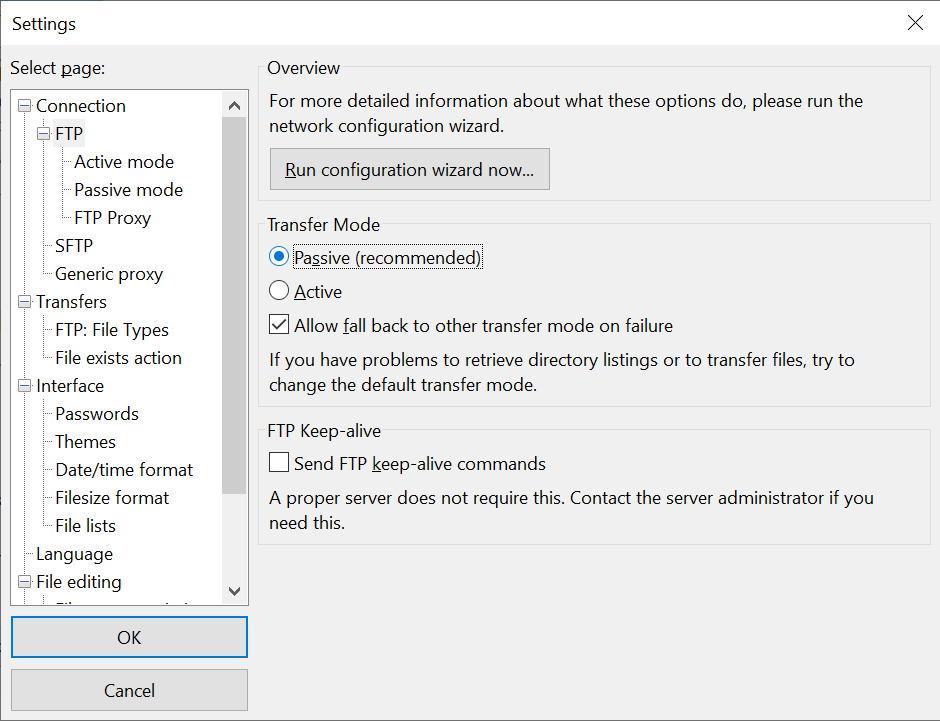
  • Go to Edit -> Setting
  • Choose FTP, mark 'Transfer Mode' "Active", uncheck "Allow fall back..."
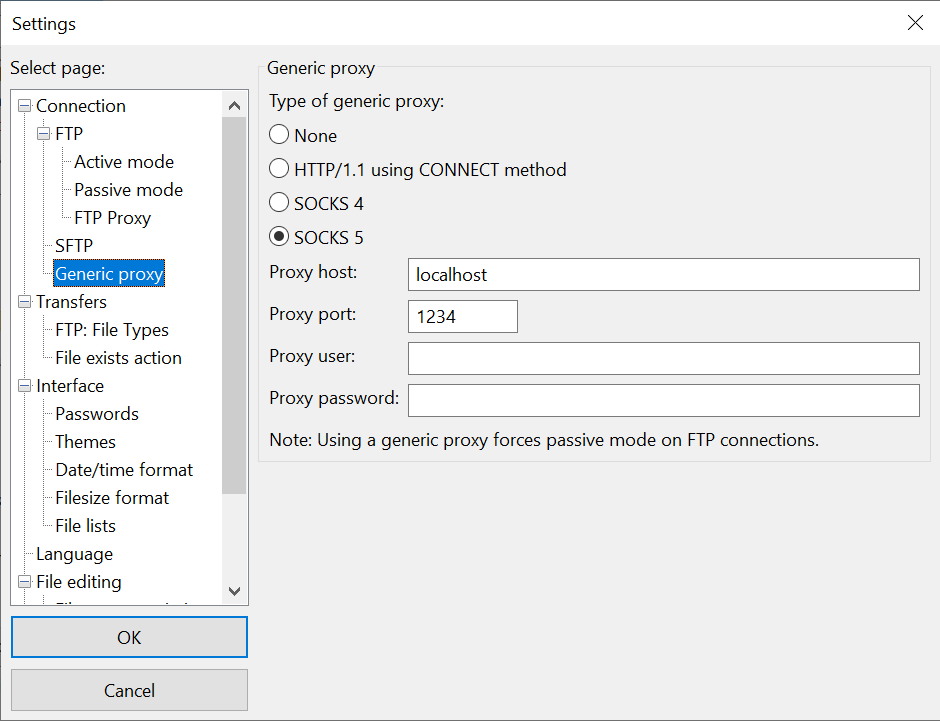
  • Choose FTP proxy setting
  • Type of FTP Proxy: Custom
  • Proxy host: gw.cs.huji.ac.il
  • Proxy user: login
  • Proxy password: password

Where:

  • login: your cs username
  • password: your regular UNIX password (IDNG)

In window type (don't use copy/paste from web, it can insert invisible character):

  • USER %s
  • PASS %p
  • USER %u@inferno
  • PASS %w
  • Click OK
  • Choose Transfers -> File Types, check 'Default transfer type' 'Auto'

Then:

  • Go to File -> Site Manager
  • Click "New Site", enter name, like "CS", and fill fields like this:
  • Host: gw.cs.huji.ac.il
  • Servertype: FTP
  • Logontype: Ask for password
  • User: login

Where:

  • login: your cs username
  • Select Tab 'Advanced', choose servertype: Unix, uncheck Bypass proxy
  • In Tab 'Transfer settings' choose Transfer mode "Active"
  • Check 'Limit number of simultaneous connections'
  • Set 'Maximum number of connections' to 1
  • Click Connect,
  • Enter your OTP password.
  • Press OK and connect.

Happy ftping!

Updated by Dmitry Perchanov 05/04/2008 osdmitryp@cs.huji.ac.il

Personal tools